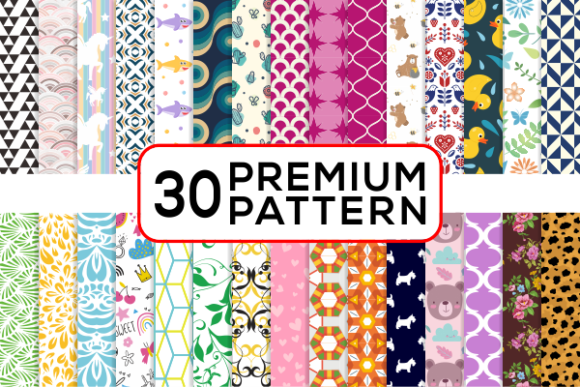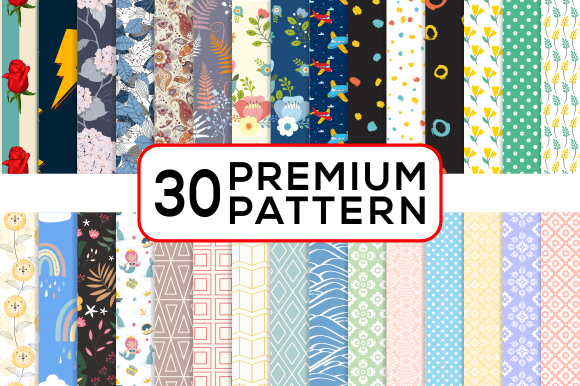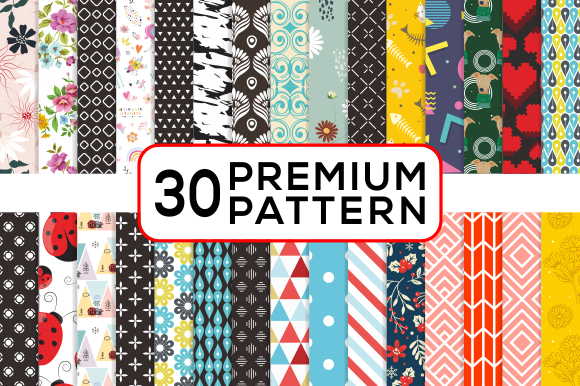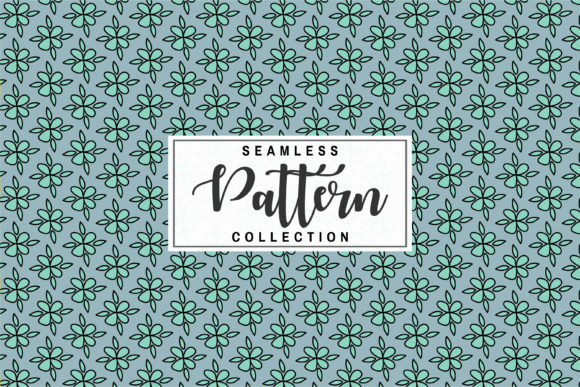
Premium Digital Paper Patterns: A Versatile Asset for Creative Workflows
Digital design assets often fall into two categories: generic stock elements that require heavy customization, or highly specific templates that only work for one project. Premium Digital Paper Patterns occupy a rare middle ground. They are detailed, ready-to-use textures that can be dropped into almost any visual project, from print collateral to digital interfaces. Whether you are designing invitations, packaging, apparel, or social media graphics, these patterns offer a foundation that saves time while maintaining a polished, professional look.
What Makes a Digital Paper Pattern a Workflow Tool
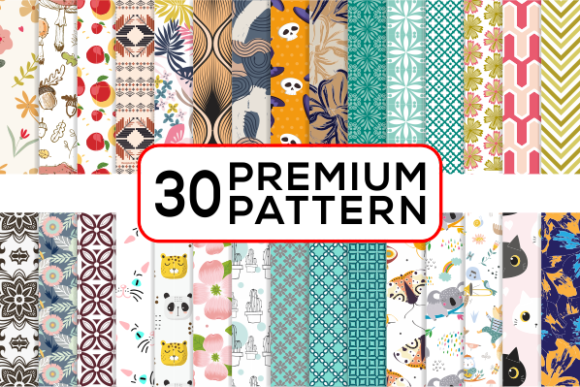
A premium digital paper pattern is not simply a decorative image. It is a repeatable texture file, typically created at high resolution and optimized for both screen and print. The set you are looking at includes Adobe Illustrator EPS files, CS files, PNG files with transparency, and high-resolution JPG files at 300 dpi and 2000 pixels. This combination of formats means the pattern can be inserted into vector workflows, raster editing, or used as a standalone background.
The real value lies in consistency. When you use the same pattern across multiple pieces of a project—say, an invitation, a matching envelope liner, and a social media graphic—the visual coherence strengthens your brand or event identity. Instead of hunting for textures that sort-of match, you work with a single asset that scales and repeats cleanly.
Where Premium Digital Paper Patterns Fit in a Creative Process
Patterns tend to perform best at specific points in a workflow: early in the planning phase, during the layout and composition stage, or as a final polish element. Understanding where to insert them can save hours of rework.
Before a Project Begins: Mood Building and Concept Selection
Early in a project, you need to establish visual direction. Instead of mocking up full layouts, create a small mood board using two or three patterns from the set. This helps clients or team members quickly understand the tone—whether it is rustic, modern, floral, geometric, or abstract. Because the patterns are high-quality digital files, you can test them against proposed color palettes or typography choices without committing to final production.
A freelance card designer, for example, might open the JPG files in a simple image viewer and pair them with a few font samples. In under five minutes, they can present three distinct style options to a client. This early alignment reduces revision cycles later.
During the Design Phase: Seamless Integration into Layouts
Once the concept is approved, the pattern becomes a functional layer. The EPS and CS files allow you to work directly in Adobe Illustrator or similar vector software. You can scale the pattern, rotate it, or change its opacity without degrading resolution. This is critical when the pattern must fit a specific area—like a bottle cap label or a cell phone cover—where precise placement matters.
The PNG files with transparency are especially useful for web and screen projects. A small business owner updating a website background can simply layer the PNG over an existing color block. No need to manually erase edges or blend awkward seams. The pattern works as a true overlay.
After the Core Design Is Done: Refining Edges and Consistency
Late-stage use often involves checking for visual fatigue or alignment issues. Because the patterns come in 300 dpi JPG files at 2000 pixels, you can print a test sample at full size and inspect the detail. This is important for physical products like magnetic sheets, nail wraps, or jewelry inserts where the pattern must hold up at small scale.
If you are producing a set of matching items—say, a suite of party decorations including invitations, cupcake toppers, and gift tags—you can use the same EPS file across all pieces. The repeat will be identical, giving the collection a cohesive, professional appearance that separate assets rarely achieve.
Practical Use Cases Across Different Mediums
The range of applications listed in the product description is not marketing exaggeration. Each format in the zip file targets a specific output.
- Print projects: Invitations, cards, and paper crafts benefit from the 300 dpi JPG files. You can print them on matte or glossy stock and the resolution holds fine detail.
- Packaging and labels: Bottle caps, product tags, and small boxes require a pattern that repeats without visible seams. The vector EPS files let you adjust the scale until the repeat matches the container dimensions exactly.
- Apparel and accessories: T-shirt designs and nail wraps often need a pattern that wraps around a curved surface. The PNG format with transparency allows you to composite the pattern onto a garment mockup with clear edges.
- Digital products: Website backgrounds, cell phone covers, and digital album pages benefit from the high-resolution JPG for full-screen displays. The 2000-pixel width ensures the pattern remains sharp on retina screens.
- Marketing and branding: Social media templates, email headers, and blog graphics can use the pattern as a subtle texture behind text. The low-opacity overlay created from the PNG file adds depth without distracting from the message.
Integration with Other Tools and Platforms
Premium Digital Paper Patterns are designed to be platform-agnostic, but a few workflow adjustments can improve efficiency depending on your primary software.
Adobe Illustrator and Vector Workflows
If you use Illustrator, the EPS file is your most flexible option. Open the file, and the pattern appears as a swatch in your Swatches panel. You can apply it to any shape, resize it using the Scale tool with the pattern transform option enabled, and even combine it with gradients or other effects. For a business card design, for instance, you can fill the background with the pattern at 50% opacity and overlay a solid color band for the contact details.
Pro tip: save the pattern swatch in your Adobe Creative Cloud library so it is accessible across Illustrator, Photoshop, and InDesign. This centralizes the asset and eliminates the need to locate the original file each time.
Photoshop and Raster Editing
For photo compositing or digital painting, the high-res JPG is the go-to. Drag it into your document as a new layer, set the blending mode to Multiply or Overlay, and use a layer mask to apply it selectively. Because the image is 2000 pixels wide, you can work on canvases up to A3 size without interpolation artifacts.
If you need a repeating pattern for a web page background, use the PNG version. Save it as a tileable image in your web assets folder. Many content management systems allow you to upload a pattern image as a background, and the seamless tile ensures it stretches across any screen size.
Organization and File Management
With multiple file formats in a single zip, folder structure matters. Create a master folder on your cloud drive or local machine labeled Pattern Assets with subfolders for EPS, PNG, and JPG. Rename each file with a consistent convention that includes the pattern name and format. For example, geometric_mandala_eps.eps and geometric_mandala_png.png.
When you start a new project, copy the needed files into the project folder. This prevents accidentally overwriting the originals. If you work with a team, store the master folder in a shared location like Dropbox or Google Drive so everyone pulls from the same source.
Quality Control and Long-Term Use
Digital assets degrade only if they are resized incorrectly or converted to lossy formats repeatedly. To maintain the quality of these patterns:
- Always work from the EPS or original high-res JPG. Do not use a compressed version for editing—only for final output.
- When exporting for web, start from the 2000 px JPG and scale down once. Avoid saving a low-res version and then scaling it up again.
- For large format printing, use the EPS file to ensure vector sharpness. Raster files at 300 dpi are fine for most jobs, but for banners or signs over 24 inches, vector is safer.
- Store a backup of the entire zip file in cold storage (external drive or archival cloud). Pattern libraries are often used across years, and losing the original files means losing consistency.
Another consideration is color consistency. If you are printing on different materials—paper, fabric, plastic—the pattern will appear slightly different due to ink absorption and surface reflectivity. Keep a small printed reference card for each pattern so you can compare future print runs. This is especially useful for small business owners producing merchandise in batches.
Adapting Patterns for Personal or Freelance Work
For independent creators, time is a scarce resource. Using a curated pattern set removes the need to create textures from scratch. A blogger designing a media kit can select a pattern that matches their brand colors and apply it to the cover page, the divider pages, and the Instagram highlight icons. The total design time drops from hours to minutes, and the result looks intentionally coordinated.
Educators and publishers can use patterns to create themed worksheets, presentation backgrounds, or digital stickers. Because the files are print-ready, you can produce physical handouts that feel polished without relying on a graphic designer. Marketers running an email campaign can use a pattern in the header image and repeat it in the landing page hero section, reinforcing the campaign visual without duplicating exact graphics.
The key is to treat the pattern as a modular component. It works with other elements—fonts, icons, photos—but it does not replace them. It supports your design hierarchy by adding texture and depth precisely where needed.
Final Observations on Workflow Readiness
The best digital assets are those that disappear into the workflow. You do not think about them; you simply apply them and move on. Premium Digital Paper Patterns achieve this because they arrive in formats that match standard creative pipelines. The EPS for vector work, the PNG for transparent overlays, and the high-res JPG for print-ready backgrounds cover the majority of modern design needs.
Whether you are producing a single invitation or an entire product line, these patterns shorten the distance between concept and final file. They are not a shortcut to poor quality—they are a structural element that, when used deliberately, elevates the entire output. Invest the few minutes needed to organize the files, test them in your common software, and build a small library of go-to patterns. Over time, that upfront effort pays back in every project where you reach for a trusted texture instead of starting from a blank canvas.