30 Pack Premium Digital Paper Patterns: A Versatile Asset for Creative Workflows
Digital assets that serve multiple purposes across different projects save time, reduce decision fatigue, and maintain visual consistency. The 30 Pack Premium Digital Paper Patterns offers exactly that kind of utility. Whether you design invitations, produce merchandise, build websites, or create digital albums, having a curated set of high-resolution patterns ready to deploy changes how you approach layout, color selection, and composition. This article walks through what this pack contains, where it fits into real creative workflows, and how to integrate it smoothly into your own projects.
What the 30 Pack Premium Digital Paper Patterns Offers Beyond Decoration
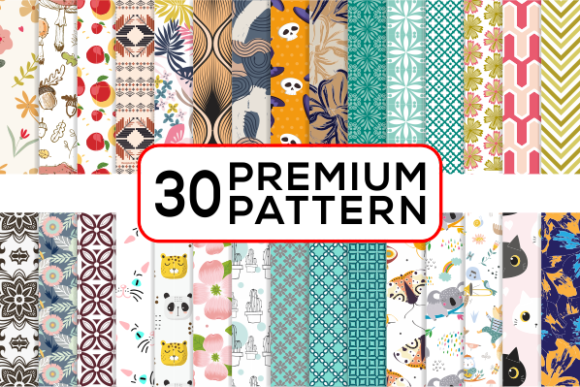
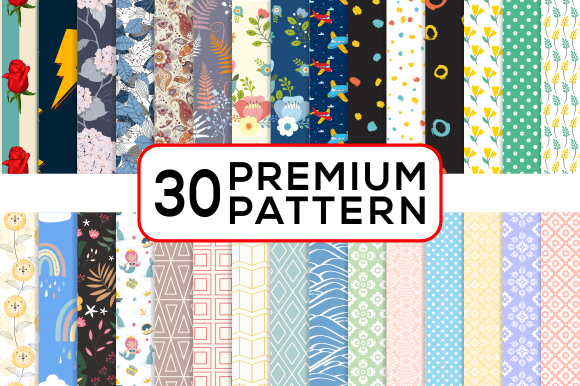
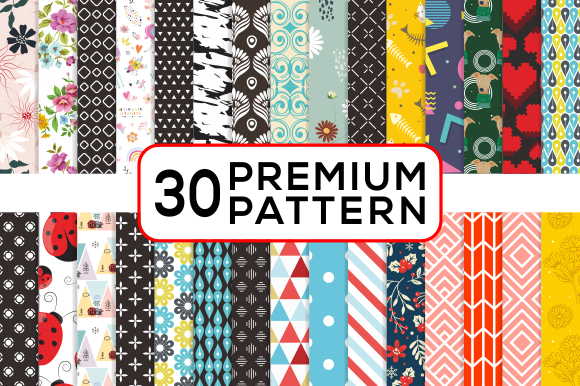
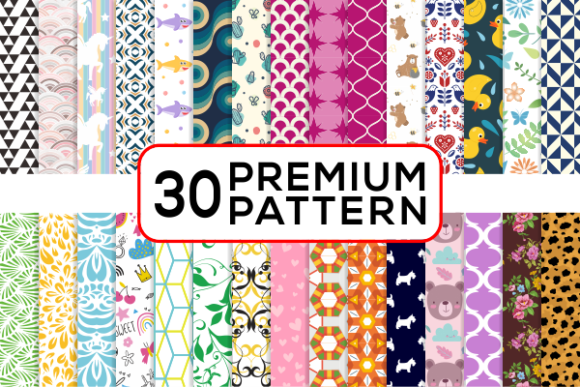
At first glance, a pattern pack appears to be a collection of decorative backgrounds. But when you examine the specifications and file types included, the practical value becomes clearer. The pack delivers 30 distinct patterns, each provided in multiple formats: Adobe Illustrator CS EPS, CS PNG, and high-resolution JPG at 300 dpi with dimensions of 2000 pixels. This combination of vector and raster options means the patterns are not locked into a single use case. You can scale a vector pattern without losing quality for large-format printing, or drop a ready-to-use JPG directly into a digital mockup without additional processing.
The real value lies in the consistency across the set. When you work with patterns from a single curated pack, the color palette, scale, and style tend to feel cohesive. That coherence makes it easier to combine multiple patterns within one project, such as a branding suite or a product line, without worrying about clashing aesthetics.
Where These Patterns Fit in a Broader Creative Process
Patterns often serve as supporting elements rather than the focal point of a design. Understanding where they fit in your workflow helps you use them more intentionally. Here are the common stages where the 30 Pack Premium Digital Paper Patterns can be introduced:
Before the Project: Planning and Mood Setting
During the planning phase, patterns help establish visual direction. You can use a few patterns from the pack as reference points for color selection, texture choice, or overall mood. Because the pack includes 30 options, you can sample several and narrow down a palette before committing to a full design. This reduces the time spent searching for inspiration across multiple sources and keeps your references contained in one organized folder.
During the Project: Direct Application and Iteration
Once you begin building your design, patterns become functional elements. Drop a JPG into a scrapbook layout, apply an EPS pattern as a repeating background in Illustrator, or use a PNG overlay on a website header. The multiple file formats allow you to move between applications without conversion delays. If you are working on a set of product mockups, you can apply the same pattern across different items, like a cell phone cover and a matching tote bag, and adjust scale or rotation directly in your design software.
After the Project: Extending the Same Visual Language
After a project is completed, having a unified pattern pack makes it easier to produce complementary materials. A client who ordered wedding invitations may later need thank-you cards or favor tags. If you used patterns from this pack for the original set, you can quickly pull the same files to create matching collateral without re-creating assets from scratch. This consistency builds a stronger visual identity and simplifies future revisions.
File Formats and How They Interact with Your Tools
The pack includes three file formats, each suited to different stages of production:
- Adobe Illustrator CS EPS – Vector format, ideal for scaling to any size without pixelation. Use this for large banners, packaging, or any project where dimensions may change. Works in Illustrator, CorelDRAW, Affinity Designer, and other vector editors.
- CS PNG – Raster format with transparency support. Useful for layering over photos, placing on colored backgrounds, or using in web design where you need a clean edge without a white box around the pattern.
- High-resolution JPG (300 dpi, 2000 px) – Ready-to-print raster format. Suitable for digital scrapbooking, print-on-demand products, or any workflow where you need a full-quality image without further editing. 300 dpi ensures sharp output on physical products.
Having all three formats in a single zip file means you can choose the right tool for the job without hunting down separate downloads. If you are preparing a file for a printer that requires CMYK EPS, you open the vector file and convert color mode there. If you need a quick background for a social media graphic, the JPG loads instantly into Canva or Photoshop.
Invitation and Stationery Designers
When designing a set of invitations, you often need a background pattern that complements typography without overpowering it. Open the EPS file in Illustrator, reduce the opacity, or scale the pattern to a subtle repeat. The 2000 px JPG works well for the back of a card or an envelope liner. Because the pack contains 30 options, you can offer clients a few pattern choices during the revision stage without designing new backgrounds from scratch each time.
Print-on-Demand Sellers (T-Shirts, Mugs, Phone Cases)
For merchandise, the pattern needs to tile cleanly and hold up at different print sizes. The vector EPS format allows you to resize the pattern to fit a small bottle cap or a large tote bag while maintaining sharpness. Use the PNG version to preview the pattern on a mockup template, and then switch to EPS for final production files. The high resolution of the JPG also works for flat mockups on platforms like Printful or Redbubble.
Website and Digital Designers
Patterns used in web design often need to load quickly and repeat seamlessly. The PNG files with transparency are especially useful for overlaying on hero sections or as subtle repeating backgrounds in blog layouts. Since the JPG versions are 2000 px, they can be sliced or compressed for web use without losing the core texture. For responsive designs, the vector EPS can be exported to SVG via Illustrator, giving you a lightweight, resolution-independent web asset.
Paper Crafters and Digital Album Creators
For scrapbooking, card making, or digital albums, the combination of high-resolution JPG and PNG gives you flexibility. Drop a pattern onto a page in Photoshop or Affinity Photo, clip a photo to it, or use it as a full-page background. The 300 dpi ensures that printed pages look crisp. Because the pack is digital, you can use each pattern repeatedly across multiple pages without degrading the file.
Organizing Your Pattern Library for Long-Term Use
A 30-pack set requires thoughtful organization if you plan to use it across many projects. Here are a few practical approaches:
- Create a master folder with subfolders by pattern name or number. Inside each subfolder, keep the EPS, PNG, and JPG files together. This makes it easy to grab all formats for a single pattern at once.
- Build a preview contact sheet. Open all 30 JPG files in a grid and save as a single PDF. Print it or keep it as a reference. When you start a new project, scan the contact sheet to pick patterns without opening each file individually.
- Tag files with keywords. If your operating system supports tags, label patterns by color family, style, or intended use. This speeds up filtering when you need a specific look mid-project.
- Store the zip file as a backup. Keep the original archive in a secure location. If you ever need to restore or share the full set, you have a clean copy without scattered files.
Quality Control and Consistency Checks
Before using any pattern in a final output, verify a few key aspects:
- Check seamlessness at the intended scale. Open the EPS file in your vector editor and create a large bounding box. Apply the pattern fill and verify that edges align without visible seams. Although these are premium patterns, always confirm the repeat works at your specific size.
- Confirm color profile. The JPG files are likely RGB. If you are printing, convert to CMYK in your editing software and check for color shifts. The EPS files can be converted in Illustrator or CorelDRAW before export.
- Test transparency usage. If you use the PNG file, place it over a dark background to ensure the transparent areas are clean and no halo appears around the pattern edges.
- Scale for consistency across product lines. When using the same pattern on multiple items, maintain a consistent scale. A pattern that looks good on a 4x6 inch card may feel too busy or too sparse on a 12x12 inch album page. Adjust the scale in your software to match the physical size of each product.
Combining Patterns with Other Design Assets
The 30 patterns work best when paired with complementary elements. Solid color blocks, simple typography, and neutral textures allow the patterns to stand without competing. If you layer two patterns from the same pack, reduce opacity on one or use different scales to create depth. The cohesive palette across the set makes these combinations possible without visual chaos.
For branding projects, use one pattern as the primary texture and another as an accent on smaller touchpoints like business cards or envelope flaps. Because the pack includes 30 variations, you can build a layered brand identity without purchasing multiple asset packs from different sources.
Efficiency Gains from a Single Pack
Having 30 patterns in one zip file reduces the time spent browsing marketplaces, comparing licenses, and downloading individual files. When you purchase a curated set, you know the resolution, format, and quality before you start. This predictability matters when you work on tight deadlines or manage multiple projects simultaneously. Instead of searching for a pattern each time, you open your library, preview the contact sheet, and drag in the file you need.
For teams, a single pack simplifies asset sharing. All members access the same 30 patterns, so projects remain visually consistent across designers. Store the files on a shared drive or cloud folder, and each team member can pull the EPS for vector work or the JPG for quick mockups without version mismatches.
Adapting Patterns for Unexpected Use Cases
Patterns from this pack can be repurposed beyond obvious designs. Nail wrap artists can scale down the JPG to fit nail templates. Jewelry makers can use the vector file to engrave patterns on metal or acrylic. Educators can incorporate them into classroom materials or digital lessons. The high-resolution and vector formats make these adaptations possible without degrading the original asset. When you own a flexible pack, the number of potential applications grows with your creativity and technical setup.
The key is to keep the original files untouched and work from copies. If you distort, recolor, or crop a pattern for a specific project, save that version in the project folder. The master files remain clean for future uses.
Long-Term Value of a Premium Pattern Pack
Digital assets like these do not expire. A pattern used today for a social media campaign can appear again next year on a product launch or a holiday card. The 300 dpi JPG files remain print-ready as long as you store them properly. The EPS vector files scale to any future format or screen resolution. This longevity makes the upfront selection of a quality 30-pack worthwhile, especially if you produce a high volume of creative work or manage ongoing brand identities.
The 30 Pack Premium Digital Paper Patterns serve as a foundation that integrates into existing workflows, reduces repetitive asset creation, and provides a consistent visual toolset for diverse projects. Understanding the file formats, organizing the library, and applying the patterns at the right stage of your process helps you get the most out of the pack.